Showing posts with label preK-1. Show all posts

Monday, November 19, 2012

There's an App for that: Using iPads in Kindergarten Schedule


There’s an App for That!
A Day in the Life
of a Kindergarten iPad


Dear Diary,  I love being an iPad in kindergarten- especially when I am used all day long.  It gets boring on the iPad cart and it's sad to see kids sitting around bored, or time being wasted when things are done the 'old' way... luckily I'm in Mrs. H's K and she knows I can do anything (ok, well... almost anything!) and her students use me a LOT!  
Here are some of the ways I am used in adigitalkindergarten!  


Before school starts: 
Sketchio to practice writing alphabet, numbers, sight words
Read I Like Books, 
Play apps in the ABC/123 folder
Create stories using StoryKit, Show Me, Screen Chomp, Doodle Buddy, Toontastic
Teach Me Kindergarten to practice addition, subtraction, phonics, sight words
TooLoud to help regulate volume control
During group time: 
Help teacher pick students randomly with Stick Pick or Decide Now
Sketchio for writing letters, numbers, words
Twitter (whole group) to write to K Around the World Pals
Counting Board to follow along as you count
Check the weather locally, and in K Around the World  locations (whole group)
Literacy Centers/Daily 5/Workshop
Sketchio to practice writing alphabet, sight words, sentences
Read I Like Books, We Give Books
Play apps in the ABC
Write stories using StoryKit, Show Me, Screen Chomp, Doodle Buddy, Toontastic
Play What Rhymes, ABC It! Or Alphabet
Handwriting Practice with Write My Name, BlobbleWrite, Letter School, iWriteWords,  Little Writer, Alphabet Tracing
Advanced readers can use Accelerated Reader to take tests
Practice phonics with ABC Magic series, Pocket Phonics, 
Rover to access websites like Starfall online
Math Centers
Use counting board to help fill out 100 board worksheets
Use Apples in Hour Hands to practice telling time
Rover to access websites online
Number Magic Apps, Montessori 100 Board, Montessori Numbers
Social/Free Time/Choice Time/Reward 
Angry Birds
Toca Boca (Band, Store, Salon, Tea Party, Doctor)
Felt Board
Playhouse Lite
Alien Assignment
Clock/Timer to let kids know how much time is left or when to clean up

Saturday, November 17, 2012

Come see me! Presenting in a city near you...

I am excited to announce I am going to be presenting in Portland, Oregon at the NCCE 2013 Conference (National Council for Computer Education) http://www.ncce.org/2013-home-page.html February 28th, 2013 on:
How to Teach, Connect and Learn with Social Media (1 hour session)
The Magic of iPads in Early Childhood Education (3 hour workshop)

I'm also scheduled to present for the Institute for Educational Development http://www.iedseminars.org/ on Using iPads and Other Cutting-Edge Technology to Enhance Learning and Teaching in the KINDERGARTEN CLASSROOM on the following dates:
Phoenix, AZ- February 4th, 2013
Denver, CO- February 5th, 2013
Boston, MA March 4th, 2013
Detroit, MI March 5th, 2013

I really hope if you enjoy and learn from my blog that you'll try to come to see me in person and let me share my knowledge and enthusiasm for using technology with you!


Wednesday, September 19, 2012

Terrific New Apps by Toca Boca and Spelling City

Today is a good day for iDevices!  Two terrific apps were released today and I immediately downloaded them and have spent time playing around with them tonight.

One I've been eagerly awaiting is TocaBand ($1.99).  The wonderful thing I've loved about Toca Boca is that just prior to a release of a new product they make one or some of their other apps free or reduce the price.  I highly recommend 'liking' their Facebook page or following them on Twitter to be kept up to date on new releases, free and reduced apps.

I have downloaded Toca's free apps (Toca Doctor lite and Toca Hair Salon-Christmas) for my  and classroom iPads.

For my personal iDevices the Toca apps are an immediate purchase- my children love them so much!  If I make the 'mistake' of telling my daughter there's a new one coming out she harangues me daily to see if it's ready.  They are reasonably priced (usually $1.99) and provide hours of creative play.  There are few apps I pay for based on their 'brand name'.  Toca Boca apps are one of them!  My 4 year old plays Toca Birthday/Tea Party, Toca Store and Toca Salon the most.

The Toca Band app had my 10 year old son engaged instantly.  My 4 year old daughter beamed when I  opened the app and she saw the new logo change into a drum set.  The great thing about Toca Apps is that children learn real life concepts in a playful way.

My son playing around with the app for the first time...

Demonstrating the "solo" feature


The placement in the band determines and demonstrates tempo and pitch changes.  My daughter says likes switching who goes into the Star spot frequently "if you let her be the star you can play the piano" (or the instrument the character represents).  Her band members talk to each other and argue a bit- "that's my spot' when she plays! 

The second NEW FREE app is the IOS version of one of my all-time favorite webpages for education.
Yes, Spelling City has launched their iDevice app(FREE)!  Most of their website doesn't work on the iPad, (some features do though) so this app should make iTeachers thrilled.

The app allows you to pick from lists loaded by username, teacher name, parent name or school zip code or their sample lists.   It does not (yet? I hope they add it in!) allow you to add words within the app.

My only problem though is that the word list (my own or one that shows up in their window) isn't loading on my iPad.  It loaded fine on my iPhone though, my son typed in his words and scored an 87%.

Teacher tip- have students take a screenshot (press home button and power button briefly) to show you their results/progress on your next walk around or at the end of the learning time.

Monday, July 23, 2012

Twitter: Source for Professional Development, Community and Authentic Teaching Opportunities


I tweet, therefore I am?  Not at all.  I try very hard not to tweet what I eat, where I am, or what I am doing unless it might be beneficial to someone.  Specifically the 200+ people who follow me (which means they receive my tweets in their timeline).  Thanks by the way, if you follow me AND read my blog!  Sometimes I tweet about something funny or interesting.  Mostly though, I tweet to communicate with other teachers and for professional development.  I LOVE that it is short and concise- 140 characters does not take much time to read over.  I may check my Twitter account several times a day, or I may go a week without checking in.  Many of the 1,156 times I've tweeted (thus far) have been conversations with people who follow me or the #kinderchat hashtag.  Tweeting is a bit like instant messaging all your virtual friends about a topic- and then some of them reply.  Anyone following you or the hashtag can see and take part in the conversation.

If you're clueless about Twitter check out this tweet/link:

Blogging : For Twitter newbies: "What’s a # mean on Twitter and what is a Twitter “Chat”?" Shout out to

Here are some of my tweets from #kinderchat past- I like to think of the #kinderchat as a station- everyone tuning in is for some reason interested in K and most are experienced educators.  When I am facing a dilemma, a frustration, or want to share a laugh... I go to my #kinderchat peeps.

Every Monday night at 9ET/6PT  a bunch of kinder teachers gather round the world wide web and share ideas, resources, frustrations...  During the school year there are scheduled topics- theses tweets from me were on using tech with kinders.


@i_teach_K Handwriting practice on iPads- if you gotta do it, it might as well be fun.

@i_teach_K tweeting w/kiddos= meaningful reason to read and write

[re: skype play and twitter with kinders] @i_teach_K increases communication skills and teaches manners... The kids LOVE it, good enough reason there

[re: skype play and twitter with kinders] @i_teach_K helps children consider others point of view, learn about culture and geography in meaningful ways  

@i_teach_K I like StoryKit, free for drawing, adding text and recording them speaking about it  

@i_teach_K Instead of whiteboards we write on iPads with sketchio  


I love Twitter for professional development.  If I'm following someone it's becasue I trust their judgment and value their opinions.  So when someone tweets about an article, I can trust that I want to read it.  I don't subscribe to professional magazines (who can afford to, really?) and don't have time to search for articles.  Yet on Twitter I can find articles and websites that are amazing and timely.  

New guidelines for tech & young children by and

Think Share Teach: Teaching in the one-iPad Classroom | blog post of things you can do with the lone iPad.
 

One  of the best ways for free professional development is to follow a conference hashtag such as #iste2012 or #mobile2012 or #naeyc12 - attendees tweet quotes, key ideas, resources and links... which you can digest in the comfort of your comfiest chair while they sit in a cold or hot, crowded conference room on hard chairs.  
Good Teaching nuggets

I don't look at the app and try to teach it. I teach math and find an app that goes with it. - Go !! 

From Graham of Learning Without Frontiers on QR Codes "just because it's digital doesn't mean it's good ;)"  

Twitter also is a GOOD source for free apps/websites
45 of these 60 educational iOS apps are free: (via &

New free iOS app BrainPOP Jr. Movie of the Week is fun for students in grades K-3:

Through Twitter I found out about Daily Five- which revolutionized my literacy instruction this year.  My kids BEGGED for Daily Five time.  
For your reading pleasure: archive to tonights re: . Enjoy!

And Symbaloo and the AWESOME #kinderchat mixes

Here is the link to the webmix of youTube songs to get them moving

AND Wonderopolis

BTW is brought to you by the great people at

And my classroom families LOVED when I discovered how to use Facebook to connect and share daily what we were doing in class

RT : I use a closed group for my class FB page. Little more info here

Resources too great to miss

Kids loved that THE author was rdg it RT : The Kissing Hand B&N online storybook: .

AND 
Tweeting is not just for adults- get your kinder kids involved next year- as I tweeted ealier it is a way to connect them with the world, give them authemtic reasons to read and write, an audience, and expose them to culture and diversity AND timezones!  
Great blog post about tweeting with kinders

more re K and tweeting

Another about tweets in K


Lastly, the laughs on Twitter are awesome when it's humor you totally get becasue it's from the kinder-universe:  Hint- look at the picture in the link!

Sometimes play is awkward worst part "Mr. Gomez you are the one on top" ... I changed tables after that
 

So,  if you've been hesitant to join Twitter... I hope you'll dive in and discover it's amazing opportunities for connecting, learning, and especially teaching!  Follow some of the people I copied the tweets from @matt_gomez @tonyvincent @hechternacht @mr_fines @tcea and definitely check out #kinderchat on Monday nights or anytime for great kinderworld inspirations!

Tell me how you use it in your professional life and say hi on twitter: My accounts are @i_teach_k or @tweetsueh


Friday, July 13, 2012

Protecting your iPad


I have TERRIBLE, HORRIBLE, NO GOOD, VERY BAD NEWS...

My lovely iPad was thrown to the cement ground in a baseball dugout while unprotected by a 4 year old (not mine) a couple of weeks ago and suffered significant cracks in all corners similar to this picture.  I was playing softball at the time and when I saw it I had a really hard time focusing on the ball- I felt nauseous and shaky- and going through my mind was: My iPad, my baby!  My husband's going to kill me! I was an idiot to let my kids play it and share it with friends, I can't afford a new iPad... Upon arriving home I did a patch job using packing tape over the corners, what a sad sorry sight!  It worked though and felt safe  Then a few days later my son was using it and I heard a pop and watched as those corner cracks spidered across my screen and now I have a completely cracked screen.  I am using it gently with saran wrap (necessity is truly the mother of invention and it actually works pretty well as a screen cover- although it does scratch easy) over it to test an app and to access apps as I work on an upcoming presentation.  My husband tells me I can send it away to Apple or a repair shop and for about $200 I can get a new screen.  He also found instructions online for do it yourself repair instructions.  A new screen can be purchased through Amazon.com (all links on this post will go to Amazon- I don't get anything from it, it's just the easiest way for me to comparison shop) here for about $30.  That is the route we are going to try.  I will let you know how it goes.  I miss my iPad and am anxous to have it restored to it's former glory.


I mentioned in an earlier post how sturdy the iPads are and that my classroom set has survived two years of daily use by 5 and 6 year olds.  They are ALWAYS protected in a folio style cover which has shock absorbing rubber at each corner. The raised corners also protects the screen from direct contact with a table or floor if dropped.

One of the best ways to protect your classroom iPad(s) is to TEACH proper care and use.
My rules:   iPads are carried with two hands (similar to library books, and yes, we practice!), one iPad at a time.  At cleanup time the children like to take as many as they can to the shelving cart- this is a no no.  iPad 'folders' must be closed when walking and stay on at all times.  iPads are used only when sitting- exceptions being when doing a marching band, taking photos or videos or other project related activities- playing Angry Birds does NOT count.  iPads do not belong at the snack table.  iPads left unattended on the ground will be confiscated and placed into protective custody.


There are man, many options available to protect your iPad.  Covers (the so called 'Smart Cover' does NOT belong in a primary classroom as it falls off much too easily), screen protectors, and stands to name a few. I was given an Ekto2 by Uziball to try out and I am positive if it had been on my iPad at the time of it's abuse it would have escaped injury completely unfazed.  It's silicone cushiony goodness would keep an eggshell from cracking (I think.  I have not tested it out!)  However, on MY iPad the case always hit the power button at inconvenient times and would power off my device.  So my children (and I) were always removing it to be able to avoid that pesky flaw.
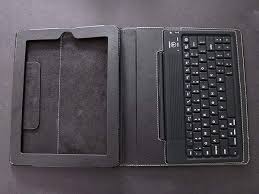

I have a Kenningston Bluetooth Keyboard Folio Case which I love.   It was not on my iPad because it needed to be charged.  The folio probably  would have protected the iPad (the corner protection is a little skimpy), but it's not conducive to play (too bulky) so I am sure the kids would have taken it off too during play so the screen still would have cracked. At least I am telling myself that!  This case is great for adults and older students though.
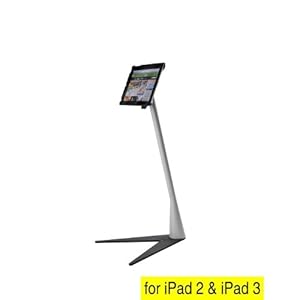


IPEVO Perch Sofa / Side Stand for iPad 2 & New iPad 3 - Black (M)IPEVO (the same people who made the amazingly affordable document camera P2V- Point 2 View USB camera)- has a nifty product called the Perch.  It it good for an iPad in a play center or at a desk.  It is not easily portable by children (lets face it- it's during transportation that the iPad is most vulnerable to dropping) but holds the iPad snugly and would eliminate accidentally knocking the iPad to ground from a table.  It is easy to adjust the tilt of the screen.  There are three options: the tabletop Perch, the couch or podium height- S,M, or L.  I prefer the couch height/M for classroom use.  What is not convenient is transporting from the perch to a case so that it can be handheld and used by students in other locations.  Plus, you'd STILL need a good sturdy case.  Certainly this is a good option for students who'd use the iPad only at their desk/table or a teacher with a one iPad classroom.


Some other options that I have NOT tried:
iGuy (fits all iPads) The iGuy has good reviews and look at that playful appearance! but one mentioned some difficulty hooking up the charger (a common complaint amongst cases/covers). 
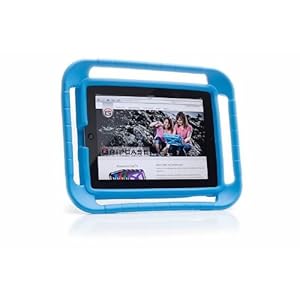
GRIPCASE FOR iPad 2nd & 3rd Generation - BLUE


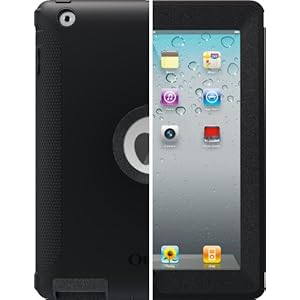
OtterBox Defender Series for The New iPad 3 3rd Generation & iPad 2 - Black
Otterbox Defender  (left) has a built in screen protector apparently and good reviews.
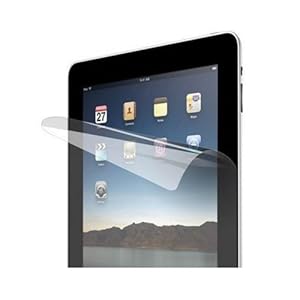
amCase (TM) Premium Screen Protector Film Clear (Invisible) for Apple iPad 2 and the New iPad (iPad 3, 3rd Generation) (2-Pack) NEWEST MODEL

The Gripcase (right) is recommended by Melissa who chronicles her iPad journey in K here.


Screen covers MIGHT be a good investment (your first scratch will make you wish you had used one), however, with a good case, the screen SHOULD be safe with normal K use. 


A good source for screen covers,  cases and other iPad accessories would be www.monoprice.com  Their cases aren't as classroom friendly as I would like to see, but for screen covers and even iPad stands- check them out.

Ziploc Freezer Bag, Gallon Value Pack, 30-Count


Lastly, (for now) I will leave you with my cheap protection idea for using the iPad near water (I KNOW it sounds terrible) but just think of science experiments, outdoor videos...
Think Ziplock!  Gallon size ziplock backs seal in iPads beautifully and sandwich bags work great for iPhones and iPods.


Wednesday, June 20, 2012

Handwriting Apps part 2

Photo: Lily was drawing about her dance class friends... Jessie, Ava, Lily and Brianna are holding hands and dancing.Handwriting is on my mind again (see my previous post: Handwriting Apps) as summer has started and my children and I have 'appointments' together each day to work on some skills.  For my older boys, it's math facts and reading and writing.  For my 4 year old daughter, it's beginning writing and reading instruction.    The other day she was drawing a picture of her dance class friends and she wrote the names (copied off of a name chart I made) and I took dictation.   She is in the 'strings of letters' writing stage.   I believe children learn letters when they have meaning, so I always start focusing on letters in names.  'Look, Jessie and Brianna and Lily all have an i!'  While she was attempting her 's' I was thinking about the apps I've used in class for handwriting skill practice and I decided to hunt to see if there are any new additions... I found one on my iPad that I had downloaded and not used yet, and another was mentioned on Apps for Children with Special Needs (a4cwsn) and another I downloaded the other day when it was free (I think I saw it mentioned on Facebook or Twitter).  Be sure to read over my previous post about finding free apps.


Finding a good, inexpensive app can be time consuming.  There are lots of apps out there and not all are worth the space on your iDevice or cost.  In my opinion, a good app has to be better than the traditional pencil/paper handwriting book.  It should TEACH, MOTIVATE/be FUN, and offer FEEDBACK.  The ability to adjust the difficulty level is important. One feature I wish all handwriting apps included is the phonics connections.  Say the letter/sound as the child is tracing please!


https://mail-attachment.googleusercontent.com/attachment/u/1/?ui=2&ik=2b9537f1b1&view=att&th=1380adab15ab445b&attid=0.1&disp=inline&safe=1&zw&saduie=AG9B_P9yGImWeRL2CO6v62CLlc6p&sadet=1340212191179&sads=Af4AjyXMsh4rwM-LLccVgCUFTOE&sadssc=1 
I found Ready to Print, $9.99- iPad only- off a4cwsn.com and was intrigued by the 'prewriting' activities to help develop fine motor skills, as well as the feature of tracing the letter and then writing it on your own.   I requested a code (my iTunes balance is down to pennies now!) and they sent me one to try it out. It has 8 activities plus a free draw option.  Within each activity there are settings to make it easy or challenging (large or small letters, wide or narrow tracing lines)  I would recommend this app for 2-6 year olds as it is great for beginning concepts of printing and good practive of actual writing.  The cost is pretty high for an app I would recommend (especially for the classroom).  However, in perspective, a workbook would cost the same- doesn't give support and is a throw away after used... so in my opinion, it's certainly worth considering.  I will make a few suggestions for their next updates to the developers but this is a really great app already.  In picture 1 and 2, the student uses two fingers to pinch the primary colors together to make a tertiary color (or put a spider in a web).  3 shows the touch/tap with index finger to 'crack' eggs (and other cute actions).  4 has students visually discriminate and match shapes.  5 demonstrates the ability to track student progress- there can be at least two users- (no personal information other than name is collected) and 6 shows setting options.  There is the option to 'lock' the settings so user information can't be erased.  Additionally, there is a 'disappearing back button option' so students have to progress through levels without quitting after one or two). 
photo 1.JPG
One of the best features of the app in my opinion, is the trace/then write option.  First the child stars where an arrow points and goes to the black dot.  If you stay in the line you get a higher accuracy score.  Then, on the right the child is encouraged to draw the line/letter they just practiced with help.  I did find it difficult to know where to begin again after making a mistake.  The sensor seemed a little touchy and was occasionally frustrating,   The developer has made several versions so I imaging/hope they will keep tweaking the app.  My suggestion is to add support/hints when a student pauses, or they are not accurate on where to start and which direction to go.

Little Writer, FREE  is created by Innovative Apps (Grasshopper/AlligatorApps) and I always like their CUSTOMIZABLE apps.  This app is no exception and is a really good free writing app (hint: go get it!).  It works on iPad/iPod/iPhone.  It has a simple homepage and options to write uppercase or lowercase letters, numbers, shapes and words.  Best part- you can add your own pictures/words for your child/students to trace. As you trace it says the letter name, (love that as my students are still learning letter names).  The only other app I've found that allows you to add your own words and have feedback/instruction is Write My Name $1.99, which I wrote about in the other handwriting post.


Repeated from previous post for new readers...

Perhaps you worry about kids learning letters using finger tips rather than pencil grips- I say don't!  You can make your own conductive iPad pens using old markers, conductive wire, conductive sponges and duct tape.  See my instructions, below from an earlier post.   I hadn't seen or heard of a sturdy, inexpensive stylus last fall so I made my own!  My students use them for writing with the iPad.  

 Link to blog post about making your own home-made, cheap, durable stylus.
 
If you're not big on DIY projects, there is a better looking, sturdy, and inexpensive option available now- the AppCrayon might be for you.

The shape of the AppCrayon is a gentle triangle, perfect for training youngsters into using the correct pencil grip.
The material feels like a soft rubber, and unlike my homemade stylus, is conductive from almost any area. AppCrayon

Popular Posts