Showing posts with label managment. Show all posts

Saturday, January 26, 2013

iPads in Kindergarten LiveBinder

Here are some of the LiveBinder's I've created to accompany my seminars- they have lots of information and links to sites that focus on using technology in kindergarten, with an emphasis on iPads for both the beginner and advanced iPad user.  It's something I hope to add to as I find more resources, so I hope you'll bookmark and come back often!  Let me know if you find it useful or have links you think I should include.

Teaching with Technology in Kindergarten LiveBinder


 Digital Kindergarten LiveBinder


NCCE Session Teach Connect Learning with Social Media

NCCE Workshop NCCE Wiki- Magic of iPads


Friday, October 12, 2012

Communicate easily with kindergarten families with Remind 101

I love when technology makes life easier!

Here's an easy free way to communicate important messages with your students' families- using Remind 101.

The app/website Remind 101 provides teachers a way to communicate quick messages to families (students).  It works with any phone that can receive texts, or families can sign up for email notifications. 


Teachers give parents a code to register for their class. Parents text the code in, provide a name to associate with the number and begin receiving your messages. Messages sent by the teacher are received through text message or email. 

Teachers can schedule events in advance that will be sent to their families on the day and time they choose. Teacher are also able to see what messages have been sent as well as who received the message.   Families cannot text you back. You can sign up for my K tech notifications and I'll text occasionally when great apps are free or newly released!


Saturday, July 28, 2012

First Steps to an iPad Classroom

iPads are intuitive and easy to use... the set up and management of a classroom set- NOT so much!  It's much better to thoughtfully plan out your iPad deployment than to start over when things don't!

Before you invest in and unpack your iPads... check out this link on iPadeducators.ning.com for some very thoughtful questions to consider and answer as many as apply to you.

Tony Vincent's Learning in Hand site has a good round up of Classroom Do's and Don'ts to follow.

Straight from the source, Apple's Education IT Resources page is full of all sorts of helpful information and has this handy ios5 deployment guide.  It's a bit techy but you can pass it to your tech support at school unless you're it!

If you're starting with one iPad, don't despair- I had one, then six, eleven and finally a class set.  This blog has great info for the one iPad classroom.  It is best to set up your account properly though to make it easier when you get more.

Above photo by 
Yutaka Tsutano
licensed under Attribution License.
http://www.flickr.com/photos/ivyfield/4686434290/sizes/m/

Friday, July 13, 2012

Protecting your iPad


I have TERRIBLE, HORRIBLE, NO GOOD, VERY BAD NEWS...

My lovely iPad was thrown to the cement ground in a baseball dugout while unprotected by a 4 year old (not mine) a couple of weeks ago and suffered significant cracks in all corners similar to this picture.  I was playing softball at the time and when I saw it I had a really hard time focusing on the ball- I felt nauseous and shaky- and going through my mind was: My iPad, my baby!  My husband's going to kill me! I was an idiot to let my kids play it and share it with friends, I can't afford a new iPad... Upon arriving home I did a patch job using packing tape over the corners, what a sad sorry sight!  It worked though and felt safe  Then a few days later my son was using it and I heard a pop and watched as those corner cracks spidered across my screen and now I have a completely cracked screen.  I am using it gently with saran wrap (necessity is truly the mother of invention and it actually works pretty well as a screen cover- although it does scratch easy) over it to test an app and to access apps as I work on an upcoming presentation.  My husband tells me I can send it away to Apple or a repair shop and for about $200 I can get a new screen.  He also found instructions online for do it yourself repair instructions.  A new screen can be purchased through Amazon.com (all links on this post will go to Amazon- I don't get anything from it, it's just the easiest way for me to comparison shop) here for about $30.  That is the route we are going to try.  I will let you know how it goes.  I miss my iPad and am anxous to have it restored to it's former glory.


I mentioned in an earlier post how sturdy the iPads are and that my classroom set has survived two years of daily use by 5 and 6 year olds.  They are ALWAYS protected in a folio style cover which has shock absorbing rubber at each corner. The raised corners also protects the screen from direct contact with a table or floor if dropped.

One of the best ways to protect your classroom iPad(s) is to TEACH proper care and use.
My rules:   iPads are carried with two hands (similar to library books, and yes, we practice!), one iPad at a time.  At cleanup time the children like to take as many as they can to the shelving cart- this is a no no.  iPad 'folders' must be closed when walking and stay on at all times.  iPads are used only when sitting- exceptions being when doing a marching band, taking photos or videos or other project related activities- playing Angry Birds does NOT count.  iPads do not belong at the snack table.  iPads left unattended on the ground will be confiscated and placed into protective custody.


There are man, many options available to protect your iPad.  Covers (the so called 'Smart Cover' does NOT belong in a primary classroom as it falls off much too easily), screen protectors, and stands to name a few. I was given an Ekto2 by Uziball to try out and I am positive if it had been on my iPad at the time of it's abuse it would have escaped injury completely unfazed.  It's silicone cushiony goodness would keep an eggshell from cracking (I think.  I have not tested it out!)  However, on MY iPad the case always hit the power button at inconvenient times and would power off my device.  So my children (and I) were always removing it to be able to avoid that pesky flaw.


I have a Kenningston Bluetooth Keyboard Folio Case which I love.   It was not on my iPad because it needed to be charged.  The folio probably  would have protected the iPad (the corner protection is a little skimpy), but it's not conducive to play (too bulky) so I am sure the kids would have taken it off too during play so the screen still would have cracked. At least I am telling myself that!  This case is great for adults and older students though.


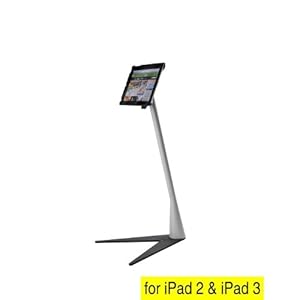
IPEVO Perch Sofa / Side Stand for iPad 2 & New iPad 3 - Black (M)IPEVO (the same people who made the amazingly affordable document camera P2V- Point 2 View USB camera)- has a nifty product called the Perch.  It it good for an iPad in a play center or at a desk.  It is not easily portable by children (lets face it- it's during transportation that the iPad is most vulnerable to dropping) but holds the iPad snugly and would eliminate accidentally knocking the iPad to ground from a table.  It is easy to adjust the tilt of the screen.  There are three options: the tabletop Perch, the couch or podium height- S,M, or L.  I prefer the couch height/M for classroom use.  What is not convenient is transporting from the perch to a case so that it can be handheld and used by students in other locations.  Plus, you'd STILL need a good sturdy case.  Certainly this is a good option for students who'd use the iPad only at their desk/table or a teacher with a one iPad classroom.


Some other options that I have NOT tried:
iGuy (fits all iPads) The iGuy has good reviews and look at that playful appearance! but one mentioned some difficulty hooking up the charger (a common complaint amongst cases/covers). 
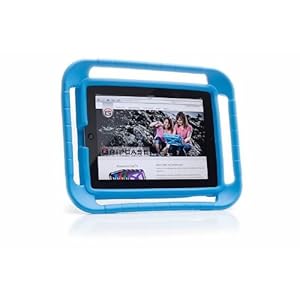
GRIPCASE FOR iPad 2nd & 3rd Generation - BLUE


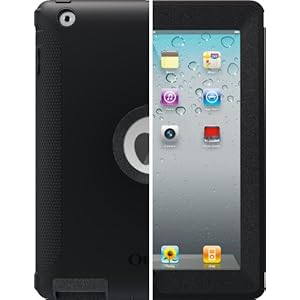
OtterBox Defender Series for The New iPad 3 3rd Generation & iPad 2 - Black
Otterbox Defender  (left) has a built in screen protector apparently and good reviews.
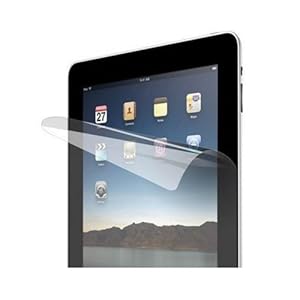
amCase (TM) Premium Screen Protector Film Clear (Invisible) for Apple iPad 2 and the New iPad (iPad 3, 3rd Generation) (2-Pack) NEWEST MODEL

The Gripcase (right) is recommended by Melissa who chronicles her iPad journey in K here.


Screen covers MIGHT be a good investment (your first scratch will make you wish you had used one), however, with a good case, the screen SHOULD be safe with normal K use. 


A good source for screen covers,  cases and other iPad accessories would be www.monoprice.com  Their cases aren't as classroom friendly as I would like to see, but for screen covers and even iPad stands- check them out.
Ziploc Freezer Bag, Gallon Value Pack, 30-Count


Lastly, (for now) I will leave you with my cheap protection idea for using the iPad near water (I KNOW it sounds terrible) but just think of science experiments, outdoor videos...
Think Ziplock!  Gallon size ziplock backs seal in iPads beautifully and sandwich bags work great for iPhones and iPods.


Friday, June 8, 2012

Privacy and protecting ourselves and our children


A colleague shared a disturbing article about the Teach Me Series, link here (picture is from iTunes store NOT my classroom! :) today at my school.  The Teach Me Kindergarten App is one of my favorite educational apps, they have made a series of apps designed for toddlers through second grade.

Apparently kids photos, and first and last name as well as device information have been sent to a third party site. Luckily it is optional in the program, my students only have their first name entered, and with the iPad1 you can't take photos so my kids info was protected.  I feel very let down by this company and it is a reminder to the consumer/teacher we need to be vigilant to ensure that the very apps that are 'helping' aren't also potentially harming our students or children. 

If you use the Teach Me Series, or plan on using it be sure to not use your last name or use your child's picture. I am disappointed to hear about this and I sincerely hope that the security lapse was unintentional. It is a great reminder though about protecting the children's privacy as well as our own.

 This week as well, LinkedIn, a service for adults, announced 6 million passwords were stolen, and as my husband, the techie says- "it is best to have different passwords for all your different school, home and online accounts.  I know it is a pain to remember them all but if you have a few you like to use and change each one a little bit you will be safer in the long run.  A reminder that you should use at least 8 characters with upper and lower case, numbers and symbols.   Here is more info on the LinkedIn leak:"

Sunday, April 17, 2011

iPads in Kindergarten? YES!

I'm a little surprised by how many negative articles I've come across this week about the school district in Maine that is going 1:1 with iPads with their new group of kindergartners.

Yes, iPads belong in Kindergarten. I've been working with young children since I was 12... I started teaching in Early Childhood Education when I was 20. I used technology as a child- record players as a very young child, BETA and VHS VCR, Prodigy internet, CD players... yes I'm that young. I used computers in my first teaching position with preschoolers. I have always welcomed new technology.

NEVER have I seen technology like the iPad that is so perfect for young children or the classroom. It's durable (and frankly, my kindergartners treat our iPads better than the high-school kids do), intuitive- they use it instinctively and more proficiently than many adults!, and such a powerful teaching tool in one small package.

Yes, the teacher still needs to carefully train the students on proper care and use of the iPad- just as they do of markers, playdough and paint. No, the iPad will not replace the teacher- after all it's their duty to decide what the child will do with the iPad, which apps are best for each child and how they will be used or not used throughout the day.

The iPad is simply an All-in-One device for kindergarten, much like the AIO printers have been to offices.

The iPad is a library, a writing center, access to the world via FaceTime and email and internet, a listening center, a math manipulative, a science book, a workbook, an art station, musical instruments and so much more.

With the littlest learners, teachers have to be everything at all times- mother, instructor, nurse, musician, artist, emergency responder, all the while planning and preparing lessons that engage kids who've just stopped taking naps (and those who fall asleep at the tables), meet a wide range of developmental needs (kids who should be in preschool and those who are ready for first or even second grade), reassure parents.... I could go on and on and on. Most importantly, kindergarten teachers are expected to teach kids skills that used to be expected out of first graders while maintaining developmentally appropriate practice- and for most kindergarten classrooms- in HALF a day!

The iPad IS a MAGICAL device for children- and their teachers. It can be tailored to provide learning, practice, and reinforcement of activities at EACH child's own developmental level. It gives teachers more TIME- the device turns on quickly and most apps literally in seconds. It reduces the need for multiple CD players, computers, flashcards, and many manitpulatives.

Most importantly to me is the instant feedback the children receive as they work. Take the Montessori 100 Board app for instance. I used to pass out a 100 board and 100 number tiles. The tiles would get mixed, students would be missing certain numbers, one bump and the tiles would get knocked off and the child would cry and have to start over. I would try to get around to children to help and correct- but often I would arrive to find the child had numbers upside down, a 35 in the 53 spot, and no clue what the name of the number was. NOW, with the iPad- they simply tap the app, and begin working- with all the tiles, with the number announced as they touch it- thus teaching the number name. It doesn't let the wrong number be placed, and has various levels of difficulty for the varied needs of students.

I hope that more and more districts see the value of a device like the iPad. I hope the people speaking out against it would stop being jealous and try to actually consider the difference that could be made in just one child's life as a result of an iPad.

In my classroom, children who could care less about behaving so they could play at free choice time CARED and changed their behavior when I announced that they wouldn't have a turn on the iPad if they had misbehaved.

The kids CHOOSE to do the learning apps during a time when they could play with anything in the class- even over "noneducational" apps.

And while they use the iPads, I can speak 1:1 with a child, I can work with a small group on reading or writing or math skills. I can actually teach children- not just monitor more than 20 5 year olds, pass out materials, try to differentiate, and catch when kids don't pick the correct answer.

Yes, the iPad is MAGIC and it definitely belongs in Kindergarten.

Thursday, March 31, 2011

Teaching Gadget: Splashtop Remote

So, here's an app that turns your iPad into a great teaching gadget- your own computer! I have only used it for two days and already I love it!

The good news is, for those of you attending Mobile2011 next week, Splashtop's developer is giving away the app (2 at EACH session!) so you may win your way to the app for free.  If you don't get one for free, it is an app well worth the $4.99 price tag. 


We all know that one of the biggest drawbacks to the iPad/iPod/iPhone is the lack of flash support.  Well, with Splashtop Remote you can use Flash based sites from your iPad/iPod/iPhone!  Eureka!

Look at these screen shots taken from my iPad while I used www.starfall.com and www.tumblebooks.com, and down below, a student is using www.spellingcity.com- three of my favorite websites that did not work before on my iPad.   Awesome as my daughter would say!


 Now, I am still figuring out Splashtop's advanced features- I'll be sure to update as I figure out more ways to use it...  I am sure there are untapped depths to the app... and yet, if all I can do is access my favorite ECE sites AND my documents from my iPad...

Well, for $4.99 ($1.99 for iPod), it's well worth it!  If you are going to come to my session @mobile2011, I will be using my iPad with Splashtop Remote during the presentation instead of being tied to my Mac and 2 attendees will get free copies! 
To use Splashtop you download the app on the iPad/iPod/iPhone, and download the free application onto your computer.  In just a few steps (I did it Tuesday am in just minutes) you connect to your PC and you can access anything from your computer via your iPad/iPod/iPhone.    The smaller screen with touch is a little difficult for me to adjust to, but it has gotten easier every time.  Above, a student is playing Hangmouse on SpellingCity.com  Then he passes the iPad to his next classmate so they can take a turn.

Beth, you asked about the iPad and interactive whiteboards... here is a great way for students to interact from the carpet/tables with what you're doing on the board!

Monday, February 28, 2011

Getting Started with iPads

Check out this helpful site, created by a colleague of mine, about using iPads in the classroom- high school and kindergarten.   Jon Tienhaara is the assistant principal and 9th grade math teacher at our school and has been the one carrying out our iPad implementation project.  His site has a video, and step by step info on getting your own iPad project off the ground.

Ipads In The Classroom

Thanks for sharing Jon!

Friday, January 14, 2011

Oo-ooh! Your name's going in the No iPad box!

So I don't have a catchy name for it yet.  I am open to suggestions.  But for now it's simply a rectangle on my board that says No iPad.  There is a name in it.  He who shall remain nameless decided to break the sacred rule of iPad use during learning centers.

"Thou shall only use approved apps (ie. those on the dock) during learning times."

I think it speaks highly of how much the kids love the ipads that I have had them since October and they haven't tested me on the rule.  One other time two little munchkins got off task but it was one of the first iPad uses independently and the expectation had not been pounded into their brains yet.

So, my little darling decided to play around during learning time, just a few hours after I had spent a little while going over new apps and reminding them of our few but sacred rules.  No, he wasn't playing Angry Birds or Blowfish or JellyCar.  He was actually happily playing another educational app.  BUT IT WASN'T on the Dock.  So his name is in the no iPad box.  And he is not happy.  For those of you worried this might happen in your class, rest easy.  This is the same child who choses not to listen 75% of the time, and oh so politely looks you in the eye while he ignores your request to ABC because he would rather XYZ.  We all have one of these occasionally.  He's a sweet, smart and stubborn little guy... but I promise you he will NOT test me on the iPad rule again.

So, his friends will be getting their turns on the most beloved objects in our classrooms next week while he gets to learn with the good old fashioned methods.

Saturday, December 18, 2010

Managing applications; OR, how to keep kids on task when using the iPad.

I love the folders that were available with the Nov. 2010 update. To make a folder all you have to do is drag one apps picture onto another. You can rename the folder as needed. I have put the apps that are focused on abc's together and named it abc's of course. I also I have math, +math, words and +words to help kids find the apps that they will be successful with. The words apps work on sounding out words or writing them. The +words apps work on more complicated spellings.  The math folder has simpler counting apps while the +math has addition, subtraction and money apps.

I also have a game folder; the students can only chose to use games during choice time. If they use a game during learning time they lose iPads for the week. I've only had one child test that so far and he was not happy when I enforced the consequence. He hasn't done that again either.  Having games has been a huge motivator for the students; if they have lost any playtime minutes (my management system- after a warning about a behavior if they continue they lose 5 minutes of playtime) they don't get a turn on the iPad that day.  The kids who were continually losing playtime have shown a marked improvement since we got the iPads.  They do not want to risk losing the chance to use the iPad.

Even with the folders I specify which apps can be used during "learning" or "center" time. While there are many good apps I want to be sure that the kids are working on specific skills during our work time.  The dock (the gray bar that stays on the bottom of the screen) holds six apps that will be visible when the home button is pushed.  I put the "best" of my educational apps here- the ones I currently have on the dock:
Literacy:  pocket phonics, iwritewords, makeaword, montessori crosswords
Math: Park Math, 123 tracer

The other apps I may ask kids to use frequently are not in folders, instead they are on the "homepage".  For example, I have StoryBuddy, Montessori Numbers, MathAliens abcLetters, dtdnumwiz, Teach Me Kindergarten, iplay&sing, ABC Magnetic Land HD, and several book apps: Seuss ABC, Pop Out Peter Rabbit, Meegenius, and xmas tale.

The best feature of the iPad is it's ease of use for little guys.  The home button quickly takes them back to all the choices on the dock or homepage.  The apps start up quickly as well.

Popular Posts